
Flow Orchestration
Flows transform data; that transformation needs a place to keep intermediate values and rules for choosing which step to run next. This lesson is about variables, expressions, and the orchestration logic that makes flows feel alive at runtime.
Variables
Information needs to be stored for many reasons:
- Calculating new values from existing ones.
- Changing the execution path based on runtime values.
- Passing values between flow components.
- Carrying environment-specific configuration.
- Tracking execution status, user messages, and errors.
Magic xpi splits variables into two broad categories:
- Environment variables — maintained externally, in the Settings dialog or in the project's
ifs.ini. - Project variables — defined inside the project, in several scopes.
Environment variables
Environment variables describe the project's physical operating environment
— file locations, database names, anything that varies between
Development, Test, and Production. The runtime engine substitutes their
value wherever it sees the name surrounded by percent signs (%name%).
| Variable Name | Defined Value | Interpreted |
|---|---|---|
sl | \ | \ |
drive | C: | C: |
datapath | %drive%%sl%data%sl% | C:\data\ |
Inbound | %datapath%in%sl% | C:\data\in\ |
Environment variables come in two flavors:
- User — you create, rename, or delete them. Renames don't ripple through your code — do this carefully.
- Internal — predefined by Magic xpi; you can change values but not delete the name.
currentprojectdiris the most commonly used internal variable.
Creating an environment variable
- Open Project » Settings.
- Navigate to Environment » General Environment » User Environment Variables.
- Click Add, enter the Name (
source_directory) and the Value. - Click OK.
MAGIC_LOGICAL_NAMES section of Magic.ini; project
environment variables live in the project's ifs.ini.
Project-specific variables
Magic xpi has four kinds of project-specific variables, each with its own scope:
Global (G.) | Available to every flow in the project. Updates are visible everywhere immediately. |
|---|---|
BP (B.) | Shared inside a single Business Process — like a global, but scoped to one BP. |
Flow (F.) | Defined and used inside one flow only. |
Context (C.) | Defined globally but valued per context. Different parallel branches can hold different values. |
Each variable has these fields:
| Name | Use meaningful names without spaces or special characters — the prefix is added automatically. |
|---|---|
| Description | Free text describing the variable's purpose. |
| Type | Alpha, Numeric, Logical, Date, Time, or BLOB. |
| Length | Max characters for Alpha; max digits / decimal places for Numeric. |
| Default Value | Initial value or expression. Only global variables can be referenced in default-value expressions. |
G.sys.ServerInstance (the runtime engine number) and
G.sys.ComponentLogging (a runtime switch for component logging).
Flow logic
Flow logic is the set of conditions and rules that determine the path your flow takes at runtime. The available tools are:
- Conditions on individual steps.
- Logic flows attached to a step.
- The
GoTocommand. - The Call Flow component.
- Component properties (Linear, Parallel, Wait for Completion).
- Flow invocation methods — triggers, publish & subscribe, the Scheduler.
Steps and branches
In the previous lesson, the Scan Directory step ran first and the Send Email step ran second — one after the other. To run them in parallel, introduce a branch by dropping the second step onto the first:
- The Directory Scanner becomes the head of the branch.
- You now have two child steps that may run together.
Linear vs. parallel execution
| Linear | Steps execute sequentially — one after the other. |
|---|---|
| Parallel | Steps execute simultaneously. Useful for performance, independent steps, and long-running steps that shouldn't block the rest of the flow. |
| Stand alone | Like parallel, but excluded from Wait for Completion. Fire-and-forget. |
Linear connections are drawn as solid lines; parallel connections are drawn as dotted lines.
Wait for completion
When linear and parallel steps live at the same level, you sometimes need to wait for the parallel siblings to finish before moving on. Set Wait for Completion on the linear step that should pause the flow; an icon appears above it on the canvas. Stand-Alone parallel siblings are excluded from the wait.
Choosing the next step
When a step finishes, the Server picks the next step:
- Run all parallel/stand-alone children whose conditions evaluate to
True(or have no condition). - Among linear children, scan left-to-right. Run the first one whose condition evaluates to
True. - If no linear child has a true condition, run the first linear child without a condition.
- If nothing matches, the flow terminates.
Expression editor
The Expression Editor is where you define expressions — formulas built from variables, constants, functions, and operators. To attach a condition to a step, right-click and choose Condition; the editor's title bar shows the expected return type (e.g. Logical).
The toolbar offers several assistors:
| Functions | Browseable list with descriptions; double-click to insert. |
|---|---|
| Variables | Pick a variable to insert at the cursor, with its type shown. |
| Environment Variables | Inserts the name wrapped in EnvVal(...) automatically. |
| ODS / PSS Topics / Source Nodes | Domain-specific picker, depending on context (covered in later lessons). |
| Insert Filename | Picks a file from disk and inserts its path as a string literal. |
Ctrl+Space; Magic xpi shows
the closest matching function, which you can paste at the cursor.
Always click Verify before closing the editor to make sure your expression is valid.
Debugging with the Context Tree
When you debug a flow, the Components pane in the Studio is replaced by the Context Tree. It lets you walk through the active flow context step by step.
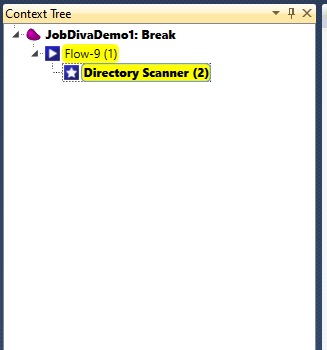
Exercise
- Replace the predefined context variables in the Directory Scanner with two flow-scoped variables:
F.RequestXML— BLOB.F.RequestFileName— Alpha 255.
- Define a global variable for the salesperson's email address:
- Name
EmailTo - Type Alpha, length
100 - Default value — the salesperson's address (e.g.
postmaster@magicxpi.com)
G.EmailToin the Email step's To field. - Name
- Add a condition on the Email component that terminates the flow if no file was moved — i.e. if
F.RequestFileNameis blank. - Add four flow variables you'll need in Lesson 7:
F.CustomerEmail— Alpha, length 100.F.CustomerName— Alpha, length 30.F.ContactName— Alpha, length 30.F.CustomerId— Numeric, size 9.
Summary
You should now be able to:
- Choose the right variable scope for the data at hand.
- Explain how Magic xpi decides which step runs next.
- Write expressions for step conditions.
- Set a step's execution mode (linear, parallel, stand-alone) and wait-for-completion behavior.