
Magic xpi Project
Time to roll up your sleeves. In this lesson you'll start the Magic xpi services, create a new project in the Studio, and tour the environment variables and project properties that every Magic xpi project ships with.
Starting the Magic xpi IMM Agent service
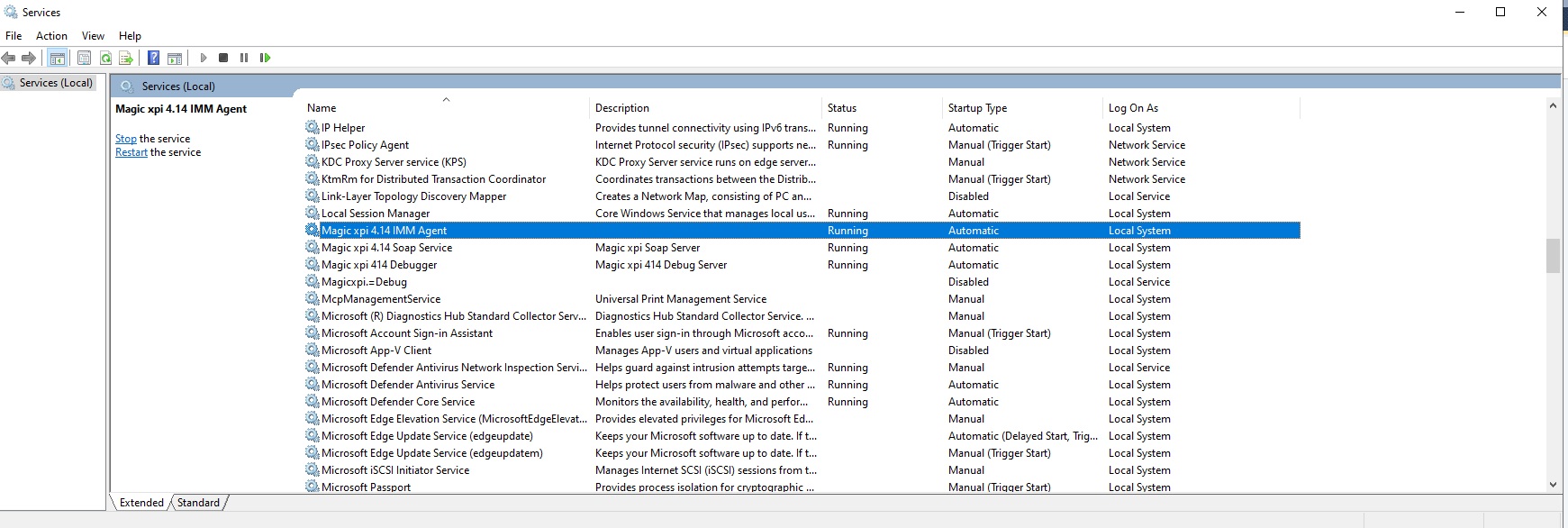
In Magic xpi 4.14.1 the runtime service is the Magic xpi 4.14 IMM Agent (formerly the GSA service in older versions). A Magic xpi project can't run if the service isn't running, so let's confirm it's healthy.
- Press
Win+R, typeservices.msc, and press Enter. - In the Services window, locate Magic xpi 4.14 IMM Agent.
- Confirm its Status is Running and its Startup Type is Automatic.
- If it isn't running, double-click it, set Startup type to Automatic, then click Start.
Creating a project
Launch the Magic xpi Studio from the Windows Start menu (or its desktop shortcut). To create a new project:
- Click the File menu and choose New » Project — or press
Ctrl+Shift+N. - In the New Project dialog, select Magic xpi Project under Installed Templates.
- Fill in the Name, Location, and Solution name fields. For this course use the name
Magic_xpi_course. - Leave Create directory for solution selected.
- Click OK.
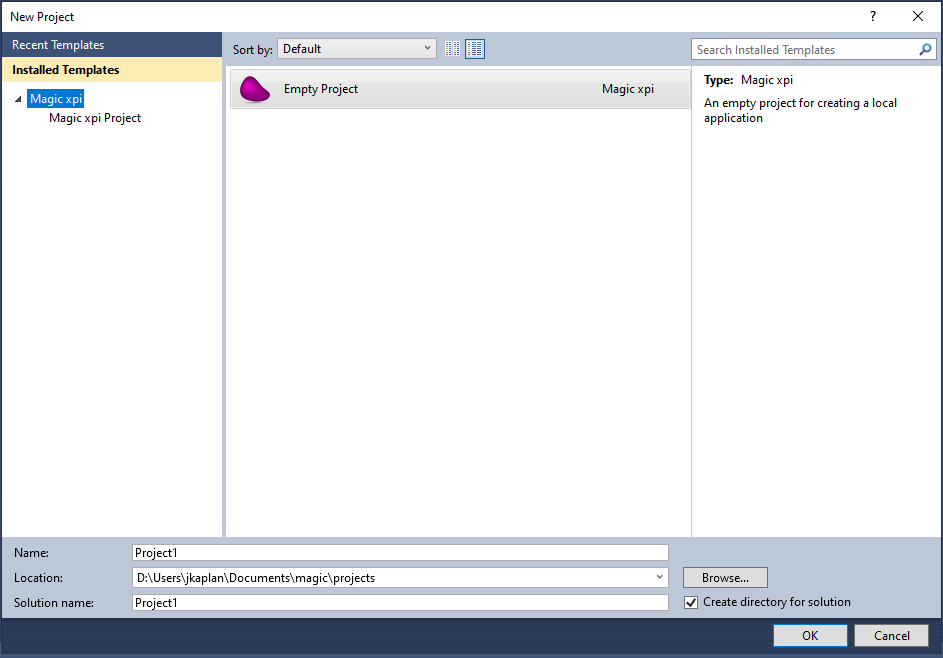
| Name | Identifies your integration project; used as an index in various tables. |
|---|---|
| Location | The folder where your project will be created. |
| Solution name | Defaults to the project name. Useful when several related projects share a solution. |
| Create directory for solution | Keeps the solution files in their own folder — recommended. |
Created project files
Magic xpi creates several files and folders on disk. Some you'll touch often:
| Source/ | XML source files that describe the project. Don't edit these by hand. |
|---|---|
| Magic_xpi_course.mgxpiproj | The project metadata. |
| Resources.xml | Settings for the external resources the project uses. |
| Services.xml | Settings for the services the project exposes externally. |
course_data folder
into the project directory before continuing — you'll use it from
Lesson 4 onward.
Environment variables
Environment variables are configuration variables for the project. They make projects portable between environments (Development → Test → Production) by letting you reference paths and connection details symbolically.
Magic xpi resolves these variables at runtime using the values in the Settings dialog under General Environment » Internal Environment Variables. New projects come with a number of predefined environment variables already populated for you:
currentprojectdir | The path to the current project's folder. Use this to avoid hard-coded directory paths. |
|---|---|
currentproject | The full path of the loaded project file (.mgxpiproj). Updated automatically when the project loads. |
magicxpi, magicxpa | Install locations for the runtime engine and Magic xpa. |
projects | The root folder under which your projects live. |
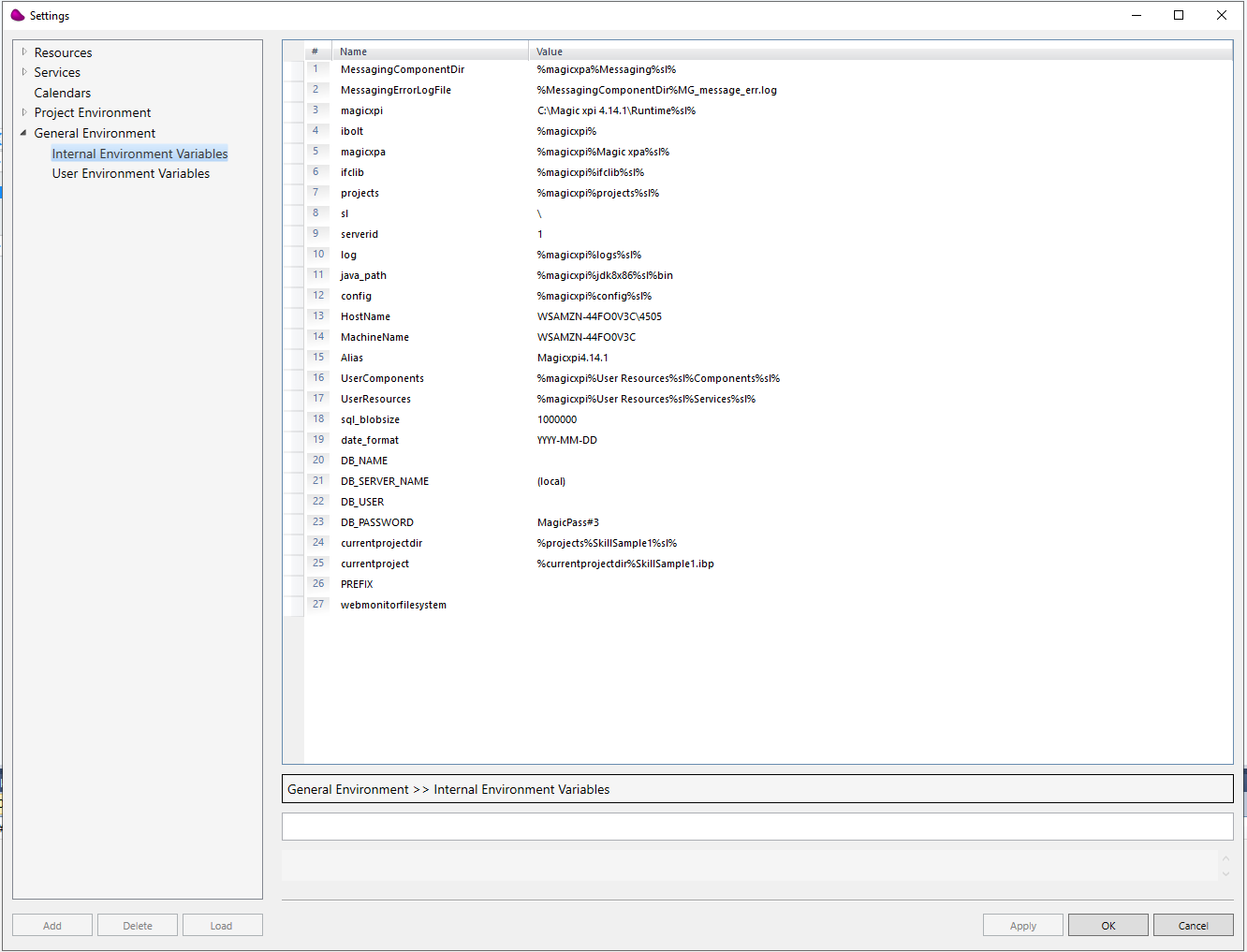
%currentprojectdir%), the runtime
substitutes the variable's value. You'll see this pattern throughout the
Settings dialog.
Project properties
A Magic xpi project has properties that you can configure to your requirements in the Project Properties window. Open it from the Project menu » <Project Name> Properties.
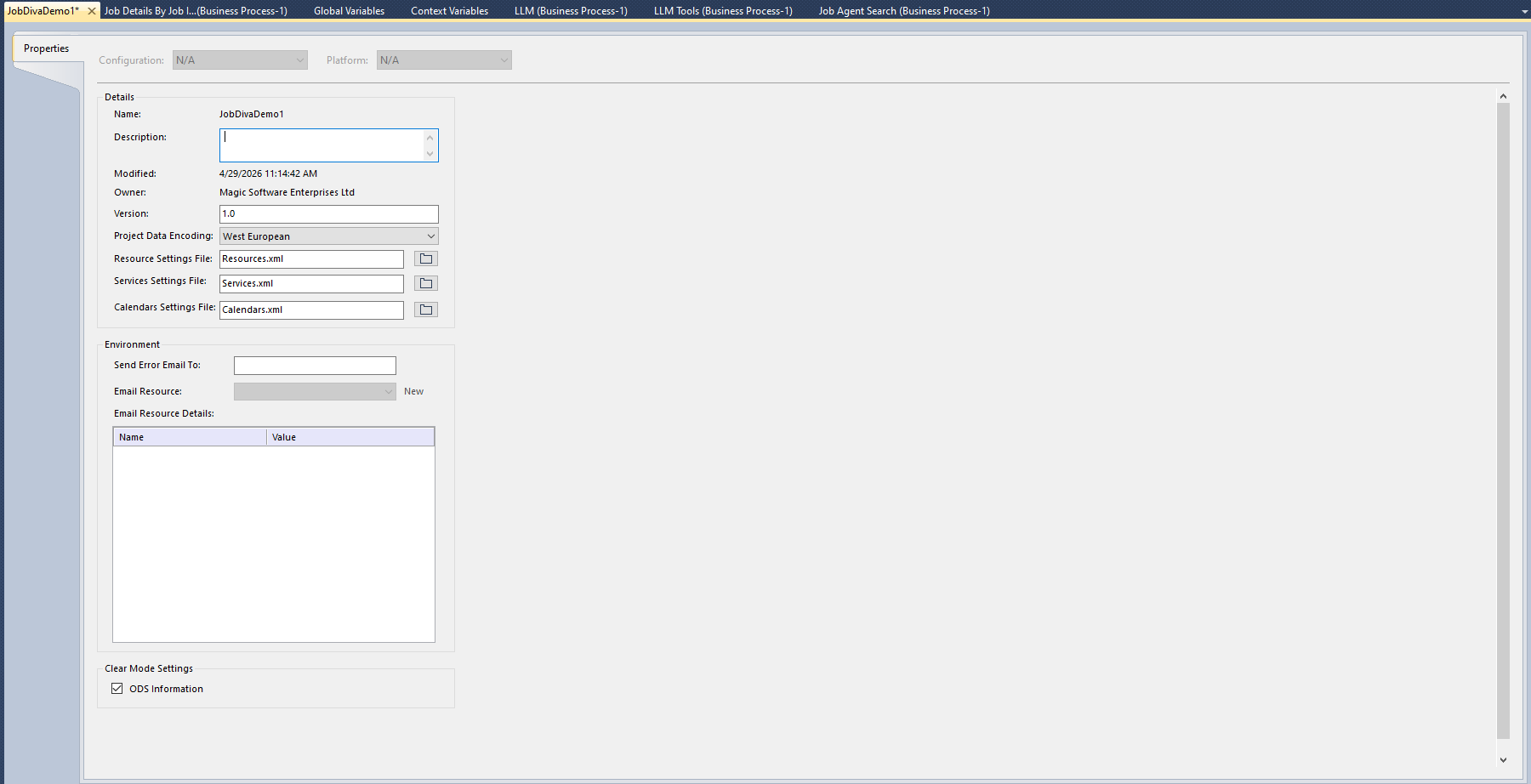
| Name | Project name (read-only here). |
|---|---|
| Description | Free-text description of the project. |
| Modified / Owner | Read-only audit fields. |
| Version | Maintained by the developer for documentation. |
| Project Data Encoding | Character set for the project files and any XML the Data Mapper produces. |
| Resource / Services / Calendars Settings File | Pointers to the XML files that hold those settings — edit them externally to port the project between environments. |
| Send Error Email To / Email Resource | Optional environment-level email destination for project errors. |
| ODS Information | Whether ODS information is cleared on project reload. |
Course project
Throughout this course you'll build an order-handling integration for a fictional company. The challenge will keep growing as the lessons progress.
Company description
MSU Computers Ltd. sells computer hardware. There are three departments: Purchasing manages stock; Sales handles customer relations and order approvals; Distribution delivers approved orders to customers.
The current status
The company runs several disconnected systems and a great deal of manual work. Sales receives requests in XML, approves them at two levels, and Logistics confirms stock by phone or email. Approved requests are re-entered by hand into Distribution's system — a lot of opportunities for error.
The challenge
Management wants to:
- Let customers register and submit requests via the web.
- Reduce the cost of order handling and post-sale processing.
The proposed solution
- Connect all of the company's systems.
- Receive requests through the website and surface them on the company's system — eliminating duplicate data entry.
- Cut request-handling time and human error.
- Define an Exception Approval process for orders with insufficient stock.
- Add automatic email notifications and approval requests.
Project description
The course project handles each customer request like this:
- Accept (or check for) new customer requests.
- Check stock availability against the local database.
- Allow a human-intervention step where required.
- Process the request and update the delivery process.
Summary
You should now be able to:
- Verify that the Magic xpi 4.14 runtime services are running.
- Create a new Magic xpi project in the Studio.
- Find your way around environment variables and project properties.
- Describe the business challenge you'll be solving for the rest of the course.