
Magic xpi Overview
Magic xpi Integration Platform delivers fast, simple integration and orchestration of business processes and applications. In this lesson you'll meet the Studio, get a feel for the moving parts of an integration project, and learn what to expect from the rest of the course.
Introduction
In the early days of application development, a connection between two systems usually meant a one-off interface written for that specific pair of applications. As the pace of business change accelerated, those point-to-point connections became a major roadblock.
Enterprise Application Integration (EAI) emerged as a method to integrate the wide array of IT applications. With the internet and the extended enterprise, Business-to-Business (B2B) integration became possible — and Magic xpi has since become a comprehensive platform for both, supporting EAI, BPM, and SOA scenarios.
Magic xpi Studio
The Magic xpi Studio is the graphic design tool that lets you build integration projects for your organization. The Studio's design surface lets you develop your integration project in an intuitive, methodical way.
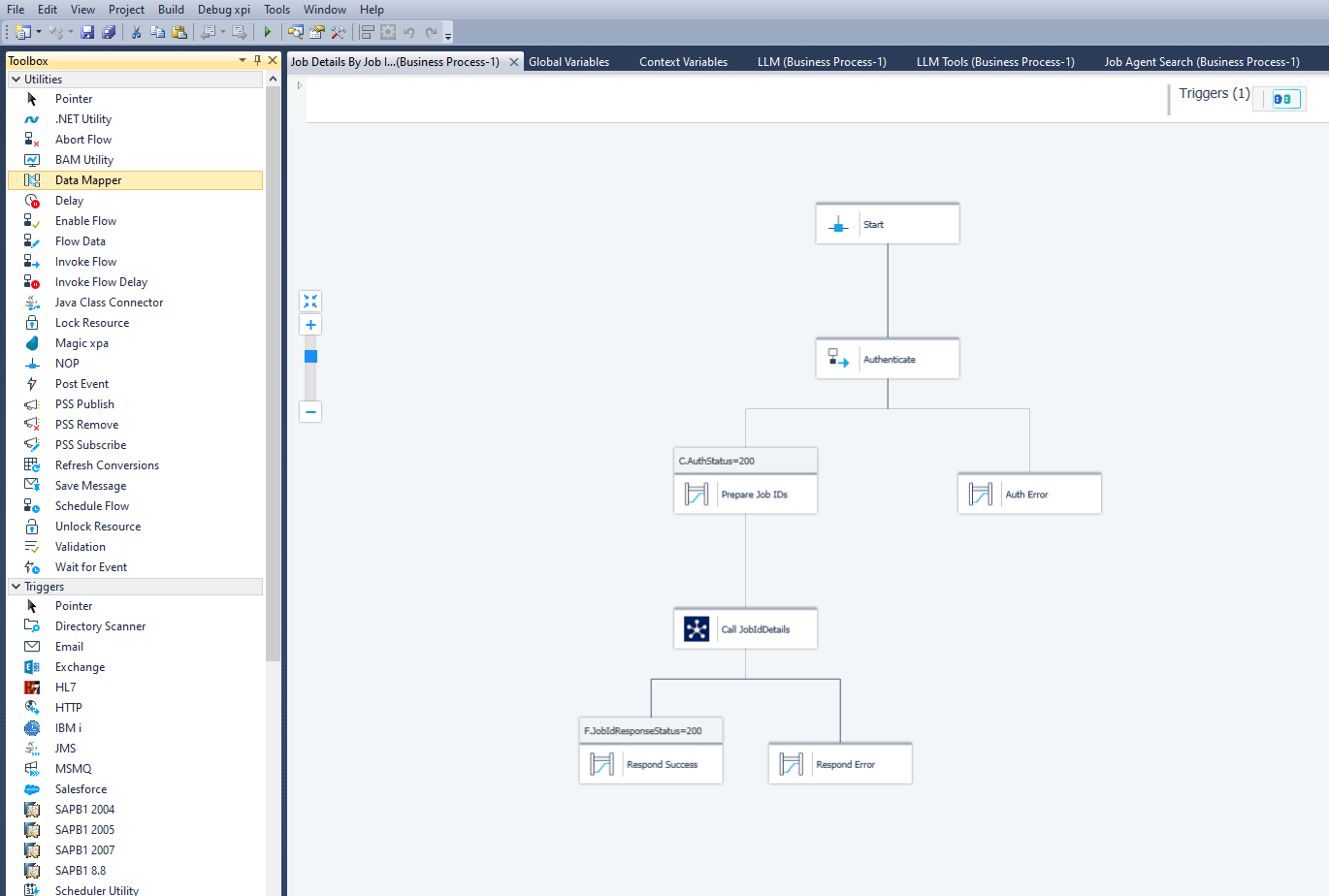
Integration flows
Flows are the backbone of any Magic xpi project. An integration flow is a set of steps with their own logic that controls execution order. A step calls either a Magic xpi flow component or one of the Magic xpi Server services. The Magic xpi Server executes flows during deployment, and you use flow variables to express the flow's logic.
An integration flow is composed of:
- Flow components
- Utilities
- Flow, context, global, and system variables
- Environment variables
- Flow logic and error handling
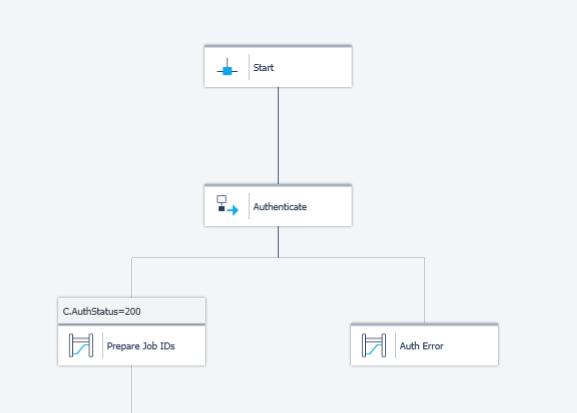
Components
A flow component is used as a step inside an integration project. Components have connecting, adapting, converting, and processing capabilities, and they can talk to virtually any third-party product. Two flavors are available:
- Out-of-the-box. Shipped with Magic xpi and configured for the task at hand — you'll use many of these during the course.
- Self-developed. Components you build yourself with the Connector Builder when you need behavior that isn't already provided.
A Magic xpi flow component must expose a specific interface that the Studio and the Server use to incorporate it into the project. That standard interface is what allows components to interoperate with the rest of your flow.
Flow orchestration
You can set conditions or rules on the execution of a flow. By
attaching conditions to components, you tell Magic xpi which branch
to follow when each condition evaluates to True. This
mechanism lets you express branches, loops, and any other flow logic
your integration needs.
Data management
Most integration projects deal with data. Magic xpi handles data in multiple ways: it can be transferred to a secondary destination (another application or a messaging queue), converted to another format (XML, JSON, CSV, flat file), persisted in one or more tables (SAP, Salesforce, a relational database), or used as conditions for other activities.
To accomplish those scenarios, Magic xpi provides:
- The Flow Data utility
- The Data Mapper
- Flow orchestration mechanics
Deploying your project
Four elements participate in running a project:
Magic xpi Server
A scalable, high-performance enterprise server for deploying, running, managing, and maintaining integration projects. The Server provides runtime containers and enterprise services, built on an in-memory data grid for messaging and context, with worker processes executing the flows. The Magic xpi Server runs as a background process on Windows or Linux and has no user interface of its own.
Magic Monitor
Because the Server has no UI, the Magic Monitor provides visibility into deployment performance and accuracy. You examine each project flow-by-flow to spot errors and tune performance through Dashboard, Messages, Flows, Triggers, Servers, Locking, Subscription, Scheduler, Summary, Activity Log, ODS, and BAM tabs.
Magic xpi Debugger
The Debugger lets you step through your project, inspect flow variables, user parameters, flow logic, and the activity log.
Version control
Magic xpi supports third-party version-control products for revision management and multi-user development. You'll use it to save versions, develop in teams, and protect files from accidental overwrites. Version control is not covered in this course.
Tools
The Studio includes several utilities for building and maintaining projects:
- Connector Builder — create custom components for the cases that aren't covered out-of-the-box.
- Checker — static syntax checking on a single flow or the entire project. The Checker flags unconfigured steps, incompatible types, and similar issues before you deploy.
- Text Search — search for text within a single flow or the whole project, then jump to the matches.
Summary
In this lesson you learned about the Magic xpi Studio. You should now be familiar with:
- What an integration project looks like in Magic xpi.
- The main components of the platform.
- The difference between out-of-the-box and self-developed components.
- The built-in Debugger for stepping through your flows.
- The supporting tools that ship with the Studio.